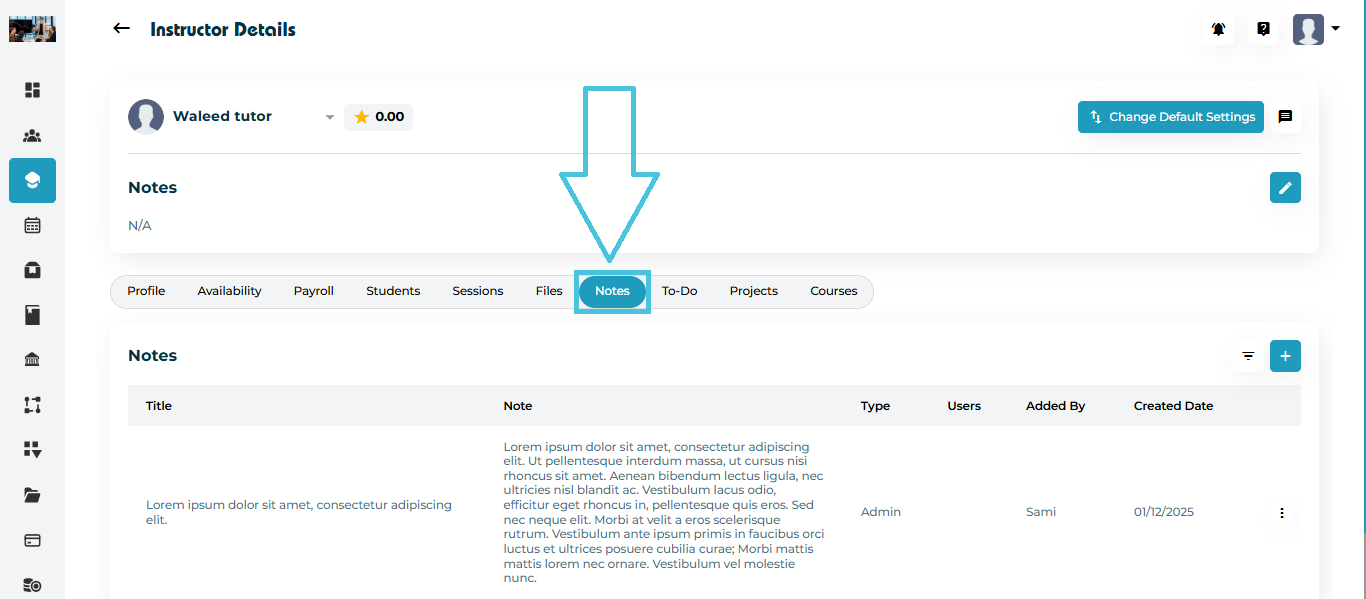
Navigate to Instructors from the left-side menu.
Open any instructor’s profile.
Click the Notes tab from the top navigation inside the profile.
Here, you will see a table listing all notes with:
Title
Note text
Type (Admin note / Instructor note / Student or Parent note)
Users (who the note applies to)
Added By
Created Date
Actions (Edit, Delete)
To add a new note:
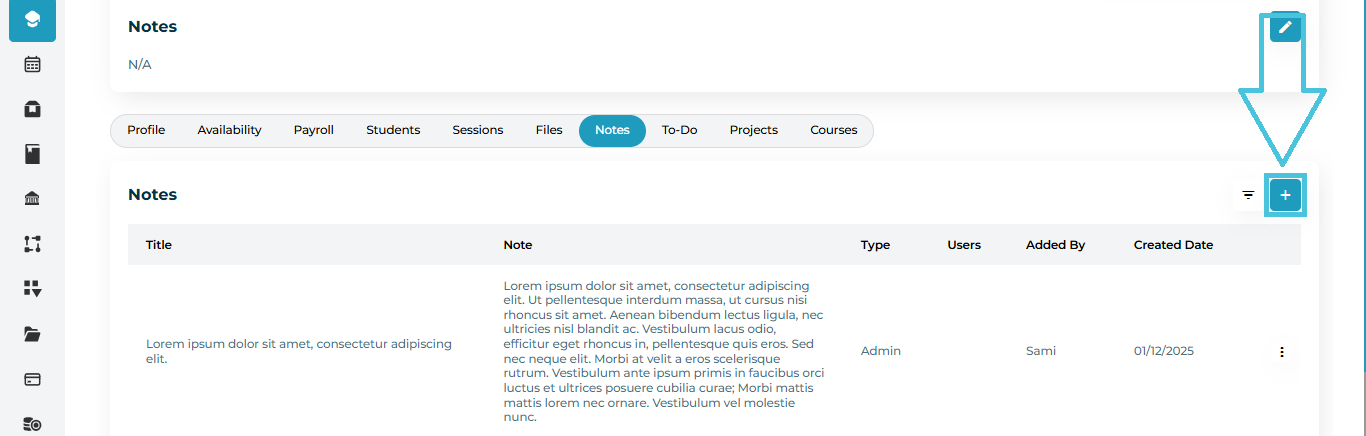
Click the ➕ Add Note button on the right side of the Notes tab.
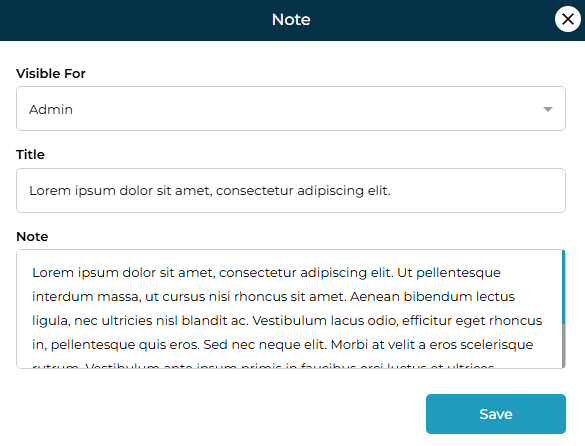
A modal titled “Note” will open.
Fill in the required fields:
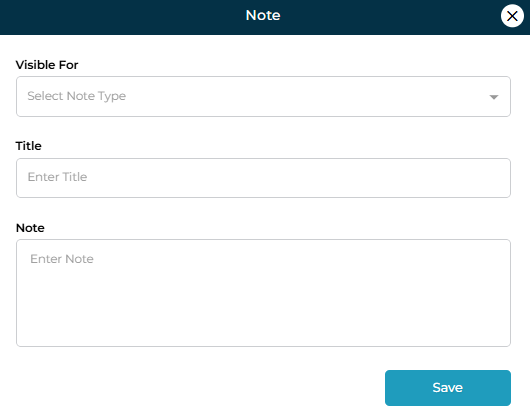
Fields Explained
| Field | Description |
|---|---|
| Visible For | Select who can view this note (Admin, Instructor, Student,Parent and Both students and parents) |
| Title | A short title summarizing the note. |
| Note | The full note description with all relevant details. |
Click Save to add the note to the instructor profile.
NOTE: any note that is visible to students or both students and parents are also automatically visible to the instructor.
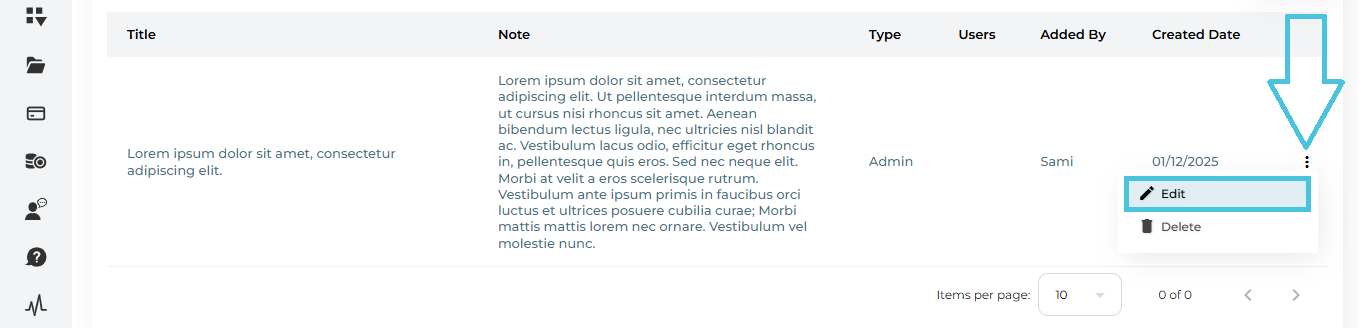
To update details or correct information:
-
Locate the note from the list.
-
Click the three-dots menu (⋮) on the right.
-
Select Edit.
-
The note form opens with existing data pre-filled.
-
Modify the Visible For, Title, or Note body as needed.
-
Click Save to update.
If a note is no longer required or was added by mistake:
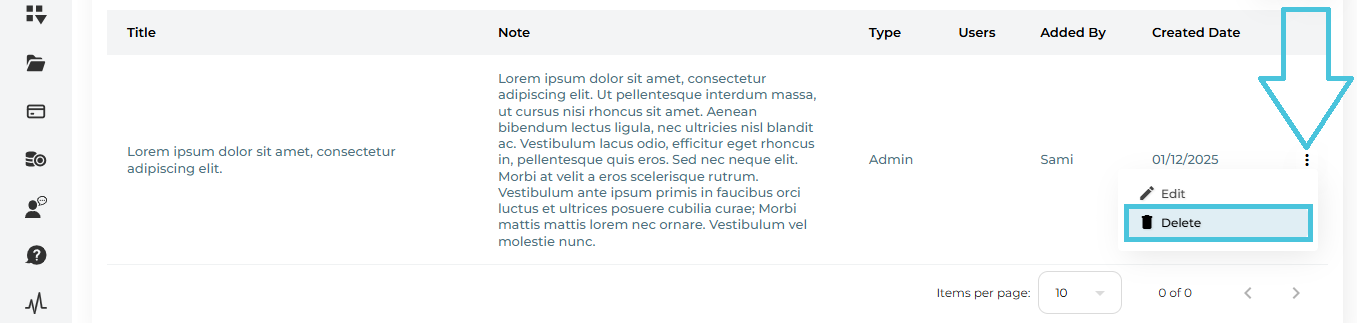
Open the ⋮ actions menu next to the note.
Click Delete.
Confirm the deletion.
Note: Deleted notes are permanently removed and cannot be recovered.
Use the Filter button to refine the list of notes.
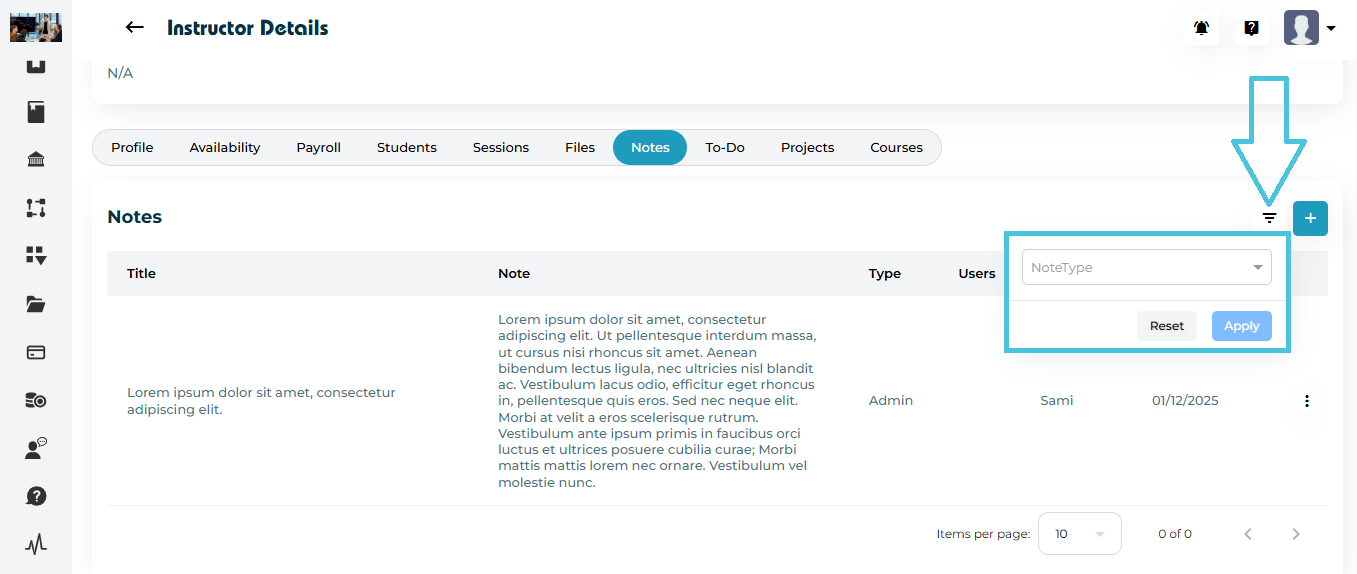
Click the Filter icon next to the Add Note button.
You can filter notes by:
Note Type – who it is added for (Admin, Instructor, student, Parent and Both etc.)
Click Apply to see filtered results, or Reset to clear all filters.