Tracking task completion

Tracking Task Completion

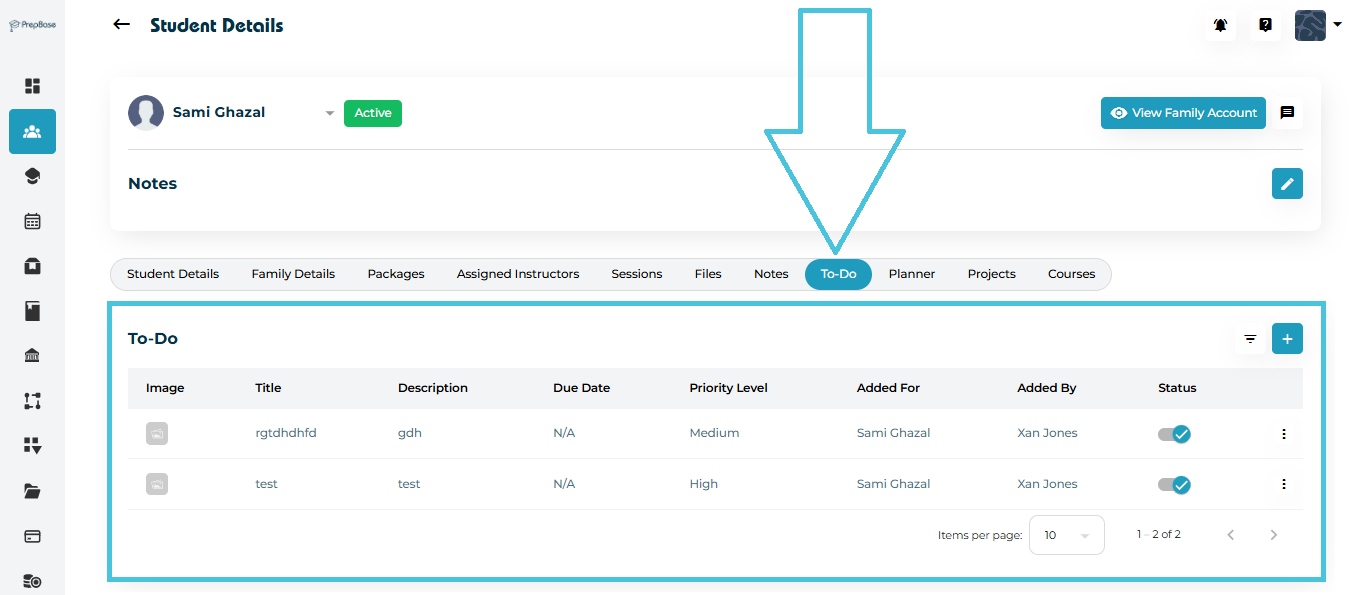
The To-Do list automatically tracks the status of every student task — allowing Admins to monitor progress in real time.

Each task has a Status toggle in the last column:

  • On (✓) → Completed

  • Off (○) → Incomplete

This simple system makes it easy to see what the student has finished and what still needs attention.

1. Viewing All Tasks

Navigate to:

Students → Student Profiles → To-Do

You will see all tasks assigned to the student, sorted by:

  • Priority

  • Due Date

  • Completion Status

2. Marking a Task as Complete

Admins or assigned instructors can update the status using the Status toggle.

  1. Go to the To-Do list

  2. Locate the task

  3. Click the toggle in the Status column

    • Blue ✓ = Completed

    • Grey ○ = Not Completed

3. Monitoring Progress Over Time

Task completion data helps Admins:

  • Measure engagement between sessions

  • Identify students who need additional support

  • Track preparation before exams or assessments

  • Encourage consistency and accountability

High-priority tasks not completed by the due date can be flagged for follow-up.

4. Updating Task Details for Accuracy

If a student’s circumstances change, you can edit the task at any time:

  1. Use Edit to update due dates or instructions

  2. Use Delete to remove outdated tasks

  3. Use Filters to review tasks by priority, student, or instructor

This ensures the To-Do list always reflects current expectations and priorities.

IN THIS ARTICLE