Tracking course completion

Tracking Course Completion

Once a student is enrolled in a course, PrepBase automatically tracks their learning progress across modules and scored activities.

This data helps Admins monitor the student’s academic engagement and overall learning performance.

1. Accessing Course Progress

  1. Open the student’s profile

  2. Click the Courses tab

  3. Open a course using View

2. Understanding Course Progress

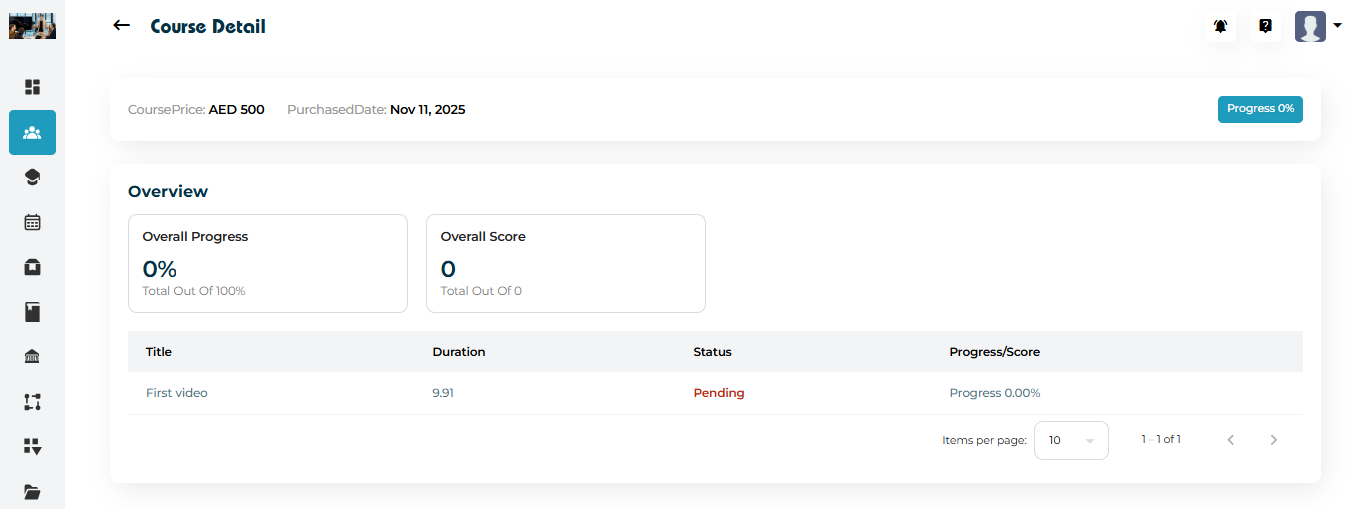
Inside the Course Detail screen, progress is displayed clearly using:

1. Overall Progress (0–100%)

Shows how much of the course the student has completed.

2. Overall Score

Displays the total score earned from graded items.

3. Lesson-by-Lesson Breakdown

Each lesson shows:

  • Title

  • Duration

  • Status (Pending, In Progress, Completed)

  • *Progress %

These values update automatically as the student uploads work or completes assessments.

3. Tracking Progress Over Time

Admins can use this data to:

  • Identify students who are falling behind

  • Encourage completion before exams or milestones

  • Evaluate skill mastery

  • Recommend follow-up tasks or sessions

  • Adjust learning plans if needed

4. Managing Course Status (Delete / Reset)

If needed, a course can be removed from a student’s profile.
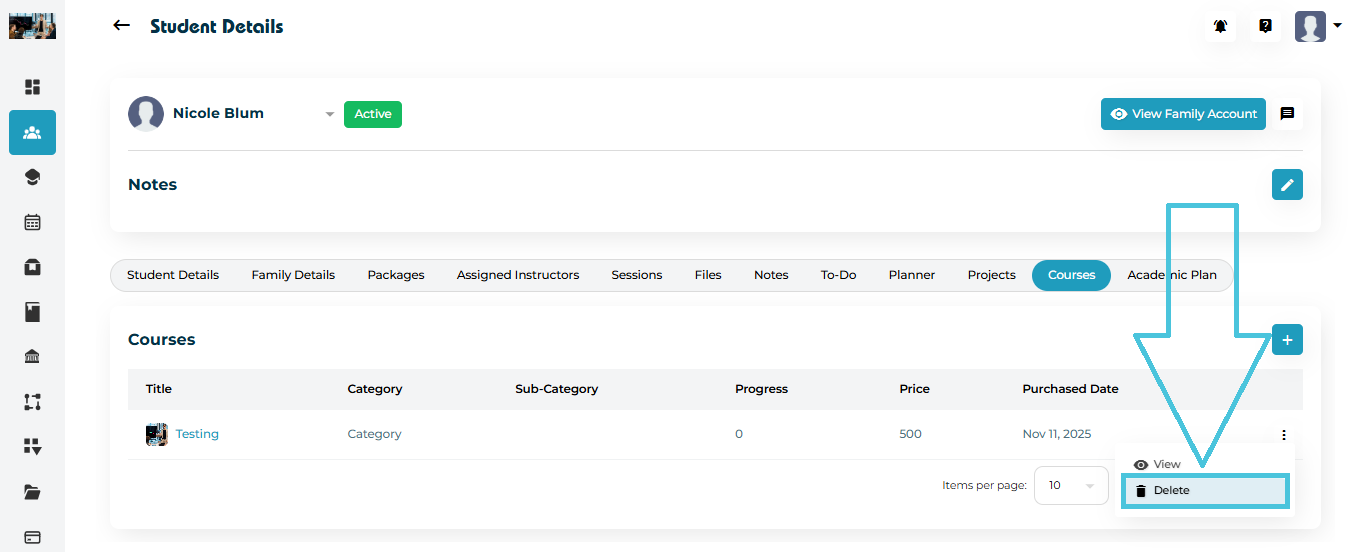
  1. Click the three-dot menu (⋮)

  2. Select Delete

This is typically done when:

  • A course was assigned incorrectly

  • A student changes programs

  • Duplicate enrollments exist

IN THIS ARTICLE