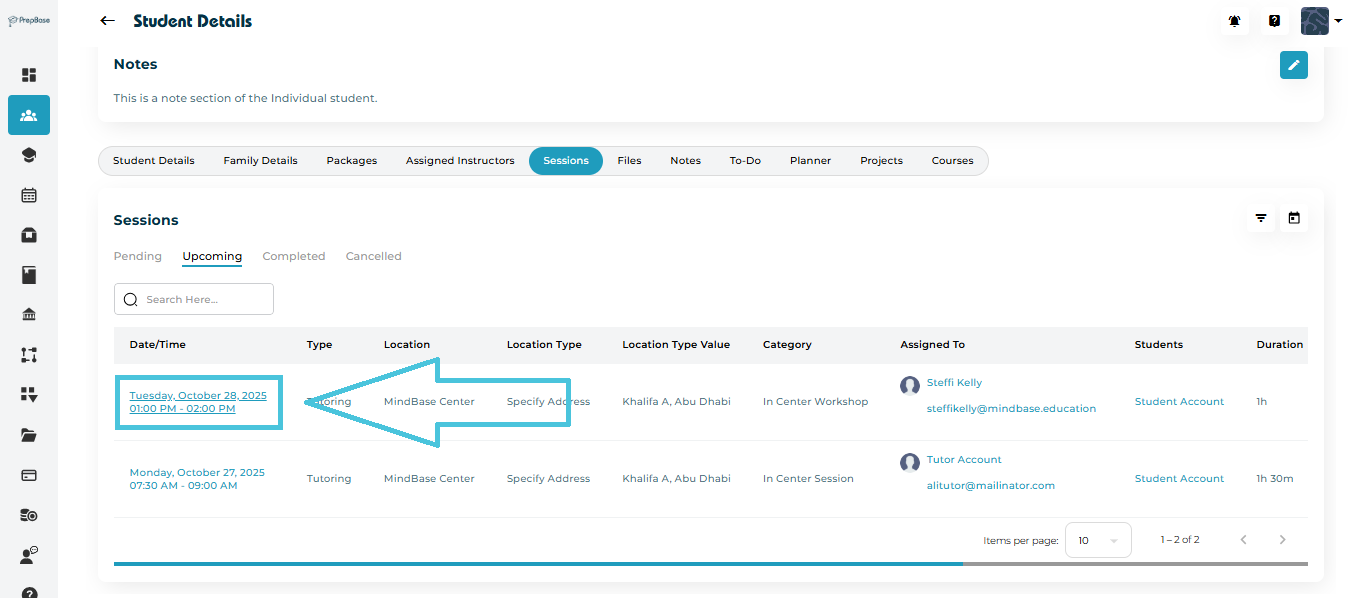
Go to Students → Student Profiles.
Select a student to open their detailed record.
Click on the Sessions tab.
Under the list of Upcoming, Completed, or Pending sessions, click on the Session Date & Time to open the full session view.
This will open the Calendar & Session Details page.
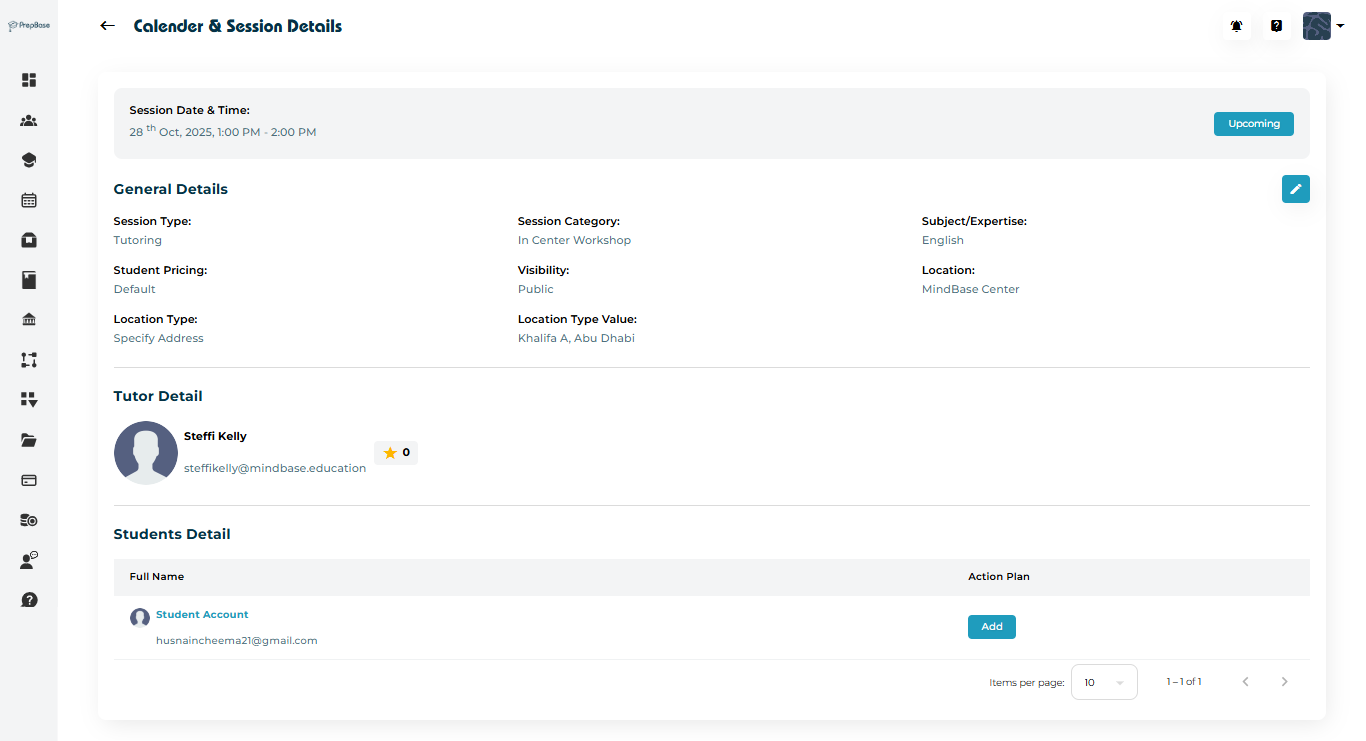
On the Session Details page, you can review:
Session Date & Time
Session Type (Tutoring or Counseling)
Session Category (Online Session, In Center Workshop, etc. created by admin)
Subject / Expertise Area
- Student Pricing (Default, No Charge, Custom Pricing)
- Visibility (Public or Private session)
- Location, Location Type and Location Type Value
Tutor Details
Student Details
This summary provides a complete overview before making any edits.
NOTE: to learn more about session categories, location types, and student pricing, please visit the Calendar & Sessions section.
To modify an existing session:
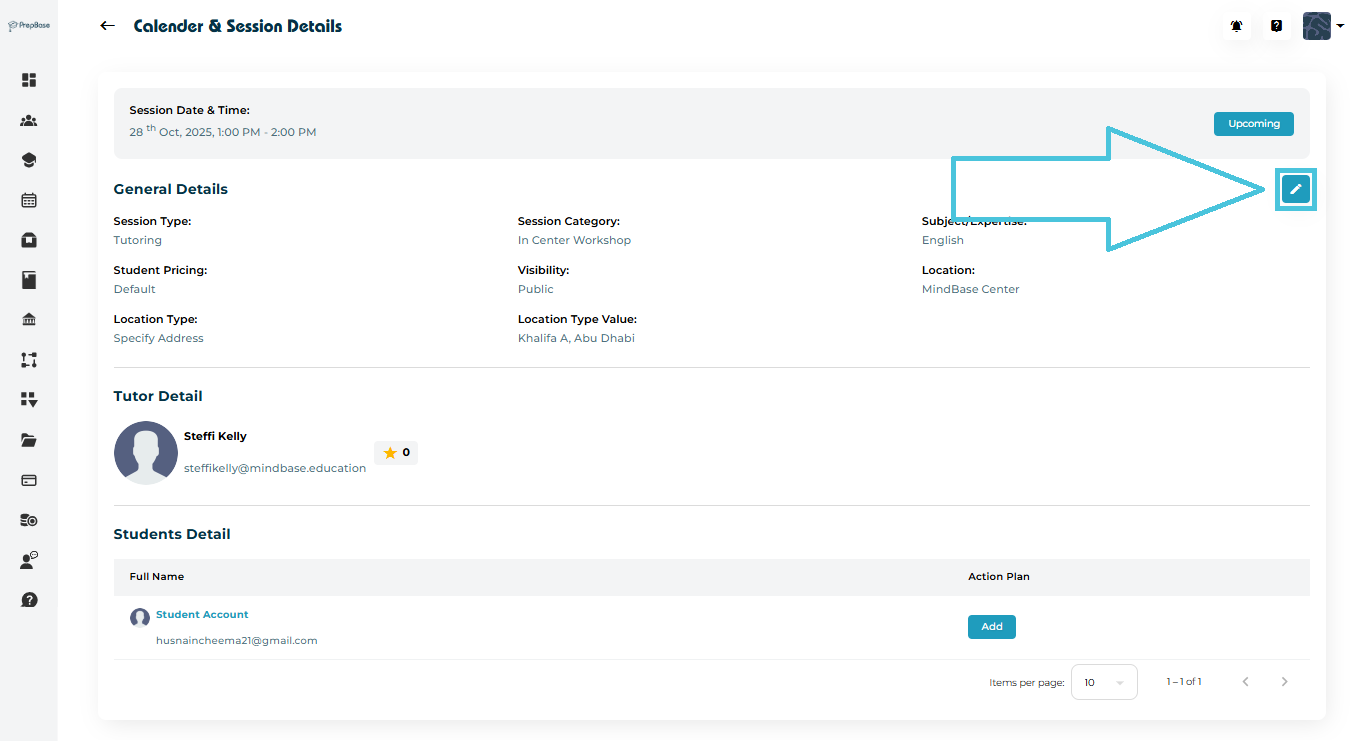
Click the ✏️ Edit button on the top-right of the session details page.
The Edit Session form will open.
In the Edit Session form, you can modify the following details:
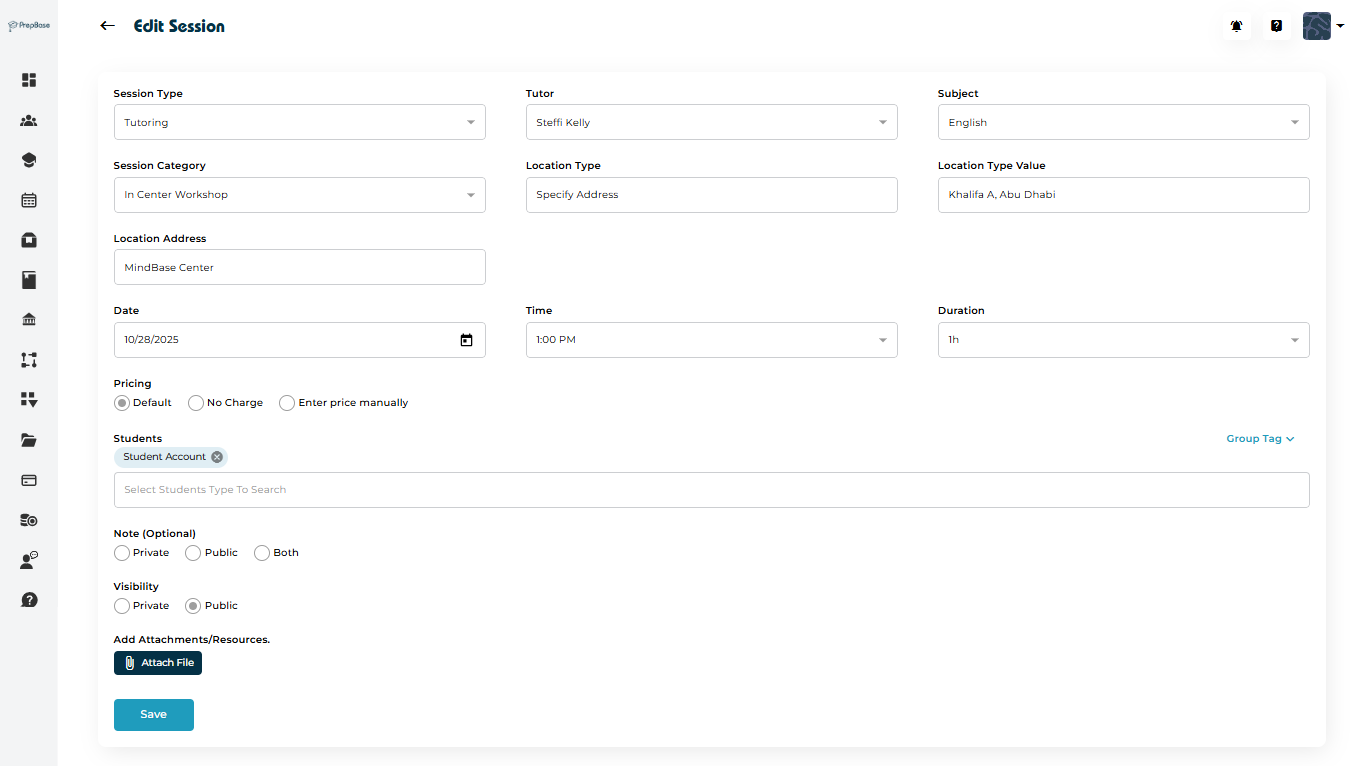
| Field | Description |
|---|---|
| Duration | Set the updated session duration (e.g., 1h, 1h 30m). |
| Students | Add or remove students participating in the session. |
| Attachments | Upload relevant files or study materials. |
Once all changes are made, click Save to confirm updates.
The session record will refresh with the new details immediately.