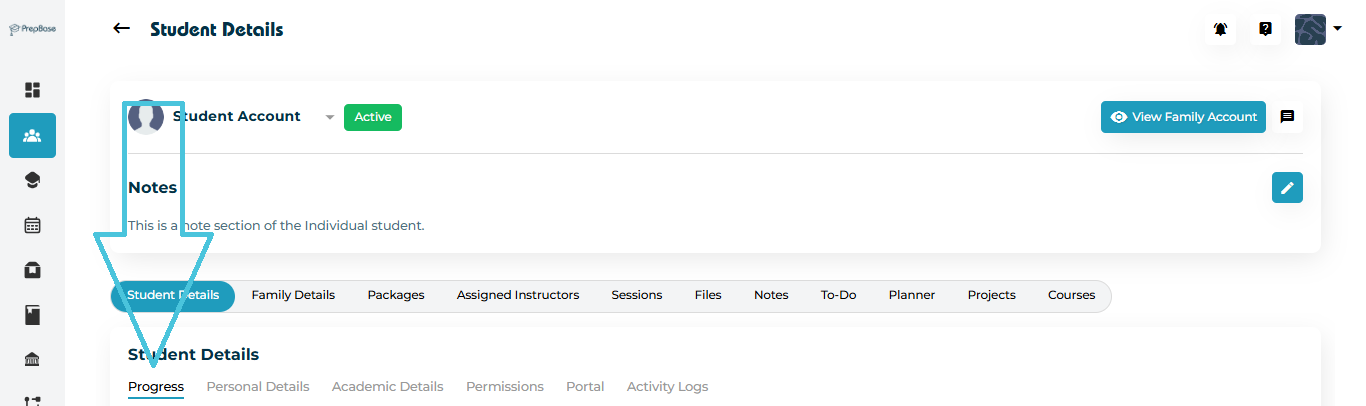
To monitor a student’s progress:
Go to Students Accounts → Student Profiles.
Select the student you wish to view.
On the Student Details page, click the Progress tab.
This section automatically updates as students complete tutoring or counseling sessions, making it easy to track their overall activity.

At the top of the Progress tab, you’ll find key summary cards showing quick insights:
| Metric | Description |
|---|---|
| Sessions Scheduled | Total number of sessions planned for the student. |
| Sessions Completed | Number of sessions successfully attended and completed. Sessions will be marked complete once the action plan has been completed by the tutor or counselor and the attendance is taken. |
| Tutoring Hours | Total and recent (30-day) tutoring hours completed. |
| Counseling Hours | Total and recent (30-day) counseling hours completed. |
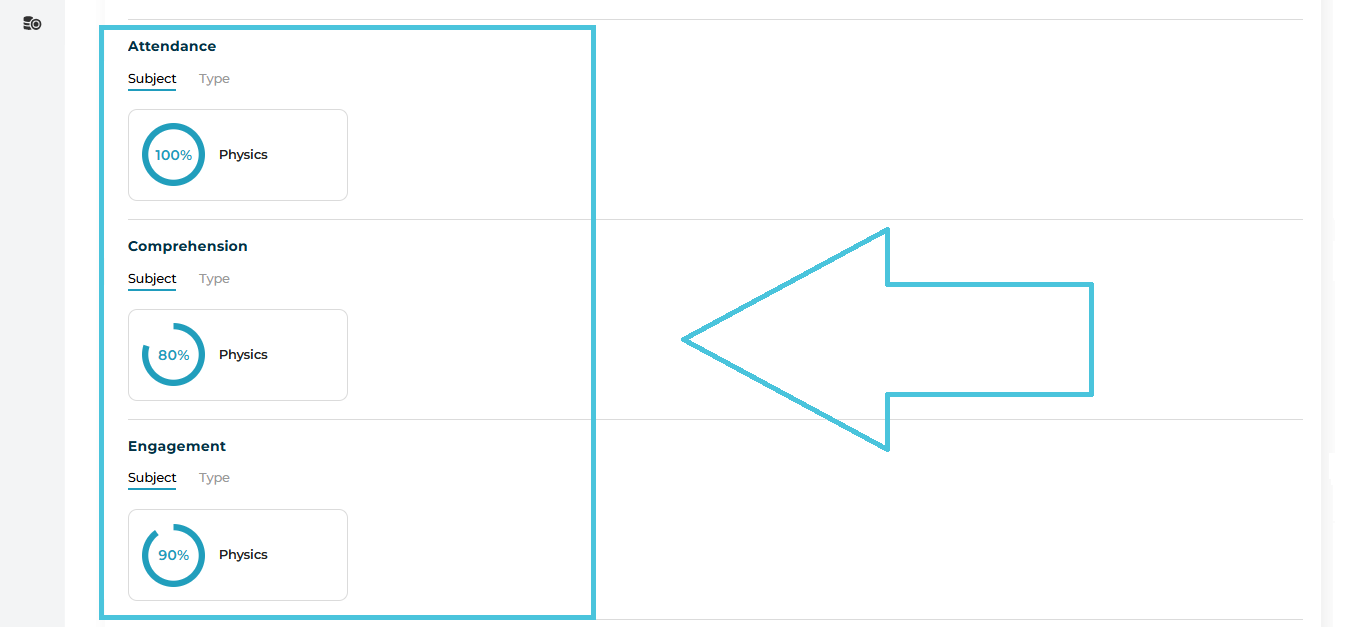
Displays key highlights of the student’s learning performance.
Attendance is the only default metric that is recorded and tracked automatically in the system once the action plans are completed by the tutors or counselors based on the attendance taken.
Comprehension and Engagement are examples of custom performance scores that are manually defined by admin per session category from the Scores & Ratings tab in the admin panel, and scored by the tutor or counselor during the post-session action plan process.
These fields automatically populate the scores entered by the tutors or counselors in the action plan based on the scores required and defined by admin for each session category that is conducted.
- Attendance and custom scores can all be viewed by subject based on the sessions conducted or by service (tutoring or counseling).
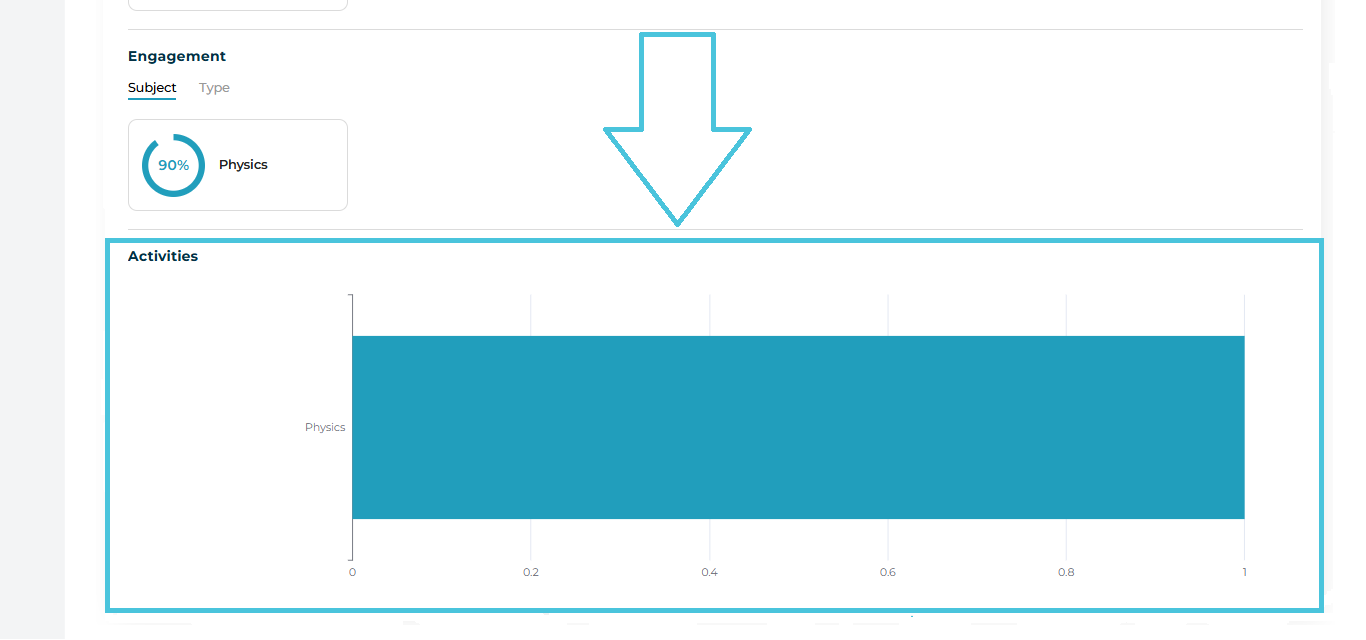
The Activities section keeps track of the total session hours completed per subject for the student.