Managing Student Permissions

Managing Student Permissions

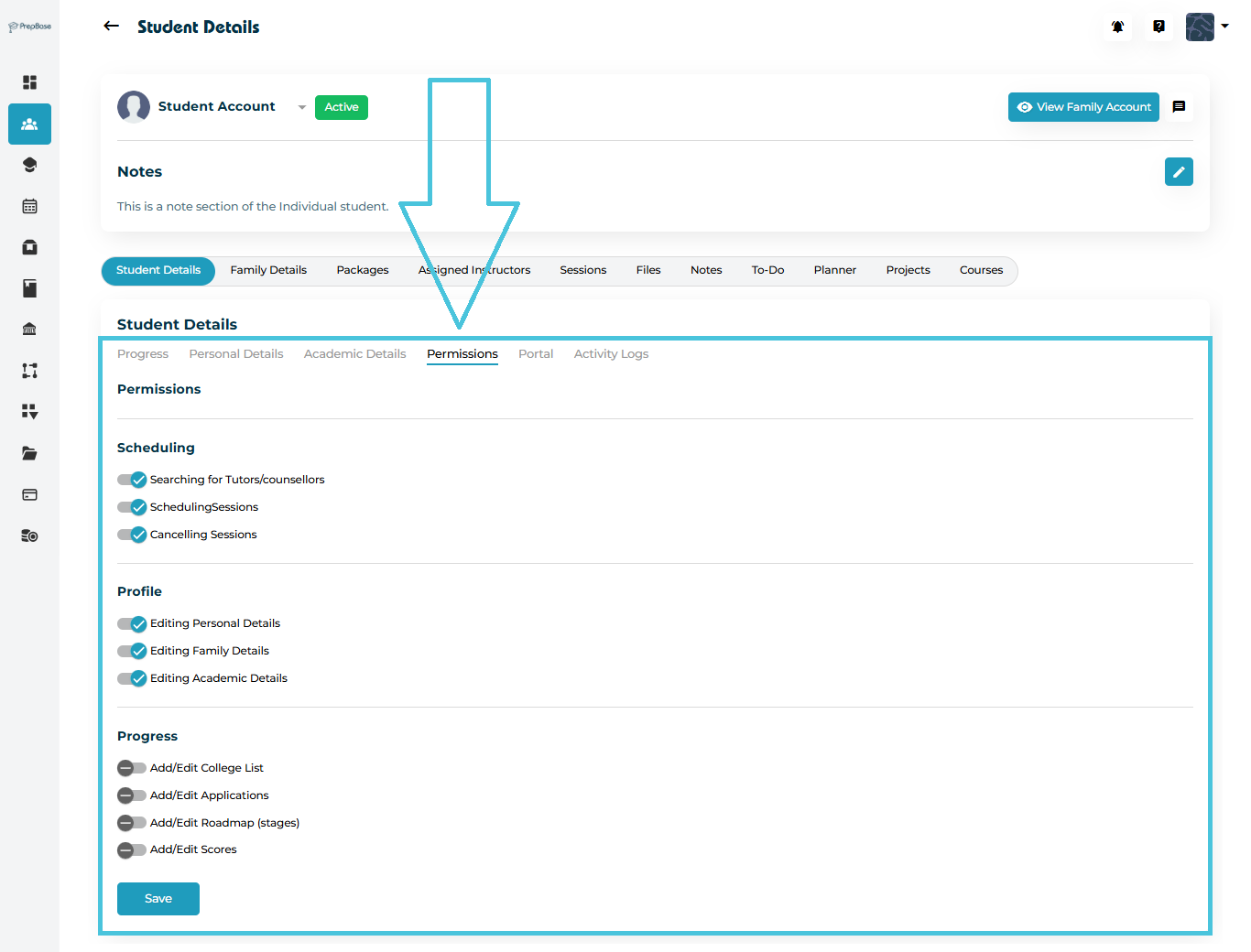
The Permissions tab allows Admins to control what each student can view or edit within their account.
From scheduling sessions to editing personal details or updating progress milestones, these settings define the level of access available to each student inside their PrepBase portal.

By managing permissions effectively, Admins can ensure students have the right tools and visibility — while maintaining system security and workflow accuracy.

1. Accessing the Permissions Tab

  1. Navigate to Students → Student Profiles.

  2. Open any student record by clicking on their name.

  3. Inside the Student Details page, select the Permissions tab.

The screen will display grouped permission categories with toggle switches that can be enabled or disabled as required.
2. Understanding Permission Categories

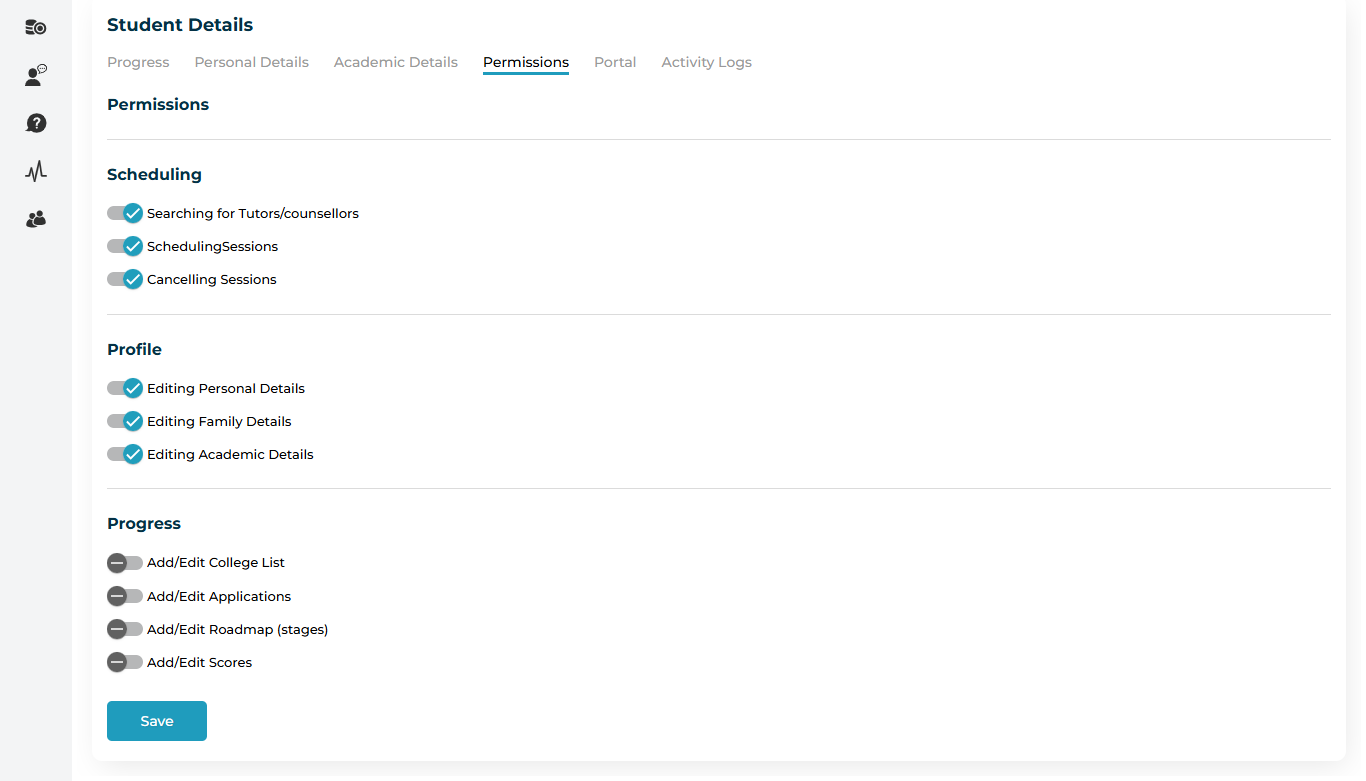
Permissions are grouped into three main sections to make management simple and clear.

Scheduling

Controls how students interact with their tutoring and counseling sessions.

  • Searching for Tutors/Counselors — allows the student to browse available tutors or counselors.

  • Scheduling Sessions — lets the student book new sessions based on their packages or availability.

  • Cancelling Sessions — grants permission to cancel scheduled sessions if needed.

Tip: Disable this option if session bookings are managed only by instructors or administrators.

Profile

Manages access to the student’s personal and family information.

  • Editing Personal Details — allows the student to update contact details and preferences.

  • Editing Family Details — enables changes to linked parent or guardian information.

  • Editing Academic Details — allows editing academic data like curriculum, major, or study level.

Recommendation: Keep these permissions active to ensure student data remains accurate and current.

Progress

Controls how students interact with their academic planners and performance tracking.

  • Add/Edit College List — enables students to maintain their college application list.

  • Add/Edit Applications — allows them to track and update their application progress.

  • Add/Edit Roadmap (Stages) — provides access to plan future admission stages.

  • Add/Edit Scores — lets students enter or modify their test and exam results.

Note: These permissions are often restricted for counselor-managed accounts.

3. Enabling or Disabling Permissions

To update a student’s permissions:

  1. Click the toggle switch beside each option to enable (✅) or disable (🚫) the permission.

  2. After making all changes, click the Save button at the bottom of the page.

Pro Tip: The system automatically updates student access in real time once saved — no need to refresh.

4. Why Permissions Matter

Configuring permissions ensures:

  • Data privacy for sensitive student or family information.

  • Proper control over scheduling and progress editing.

  • Efficient collaboration between students, instructors, and counselors.

When permissions are set correctly, students can focus on their studies while administrators maintain full oversight.

IN THIS ARTICLE