-
Go to Students → Student Profiles.
-
Click on a student’s name to open their detailed profile.
-
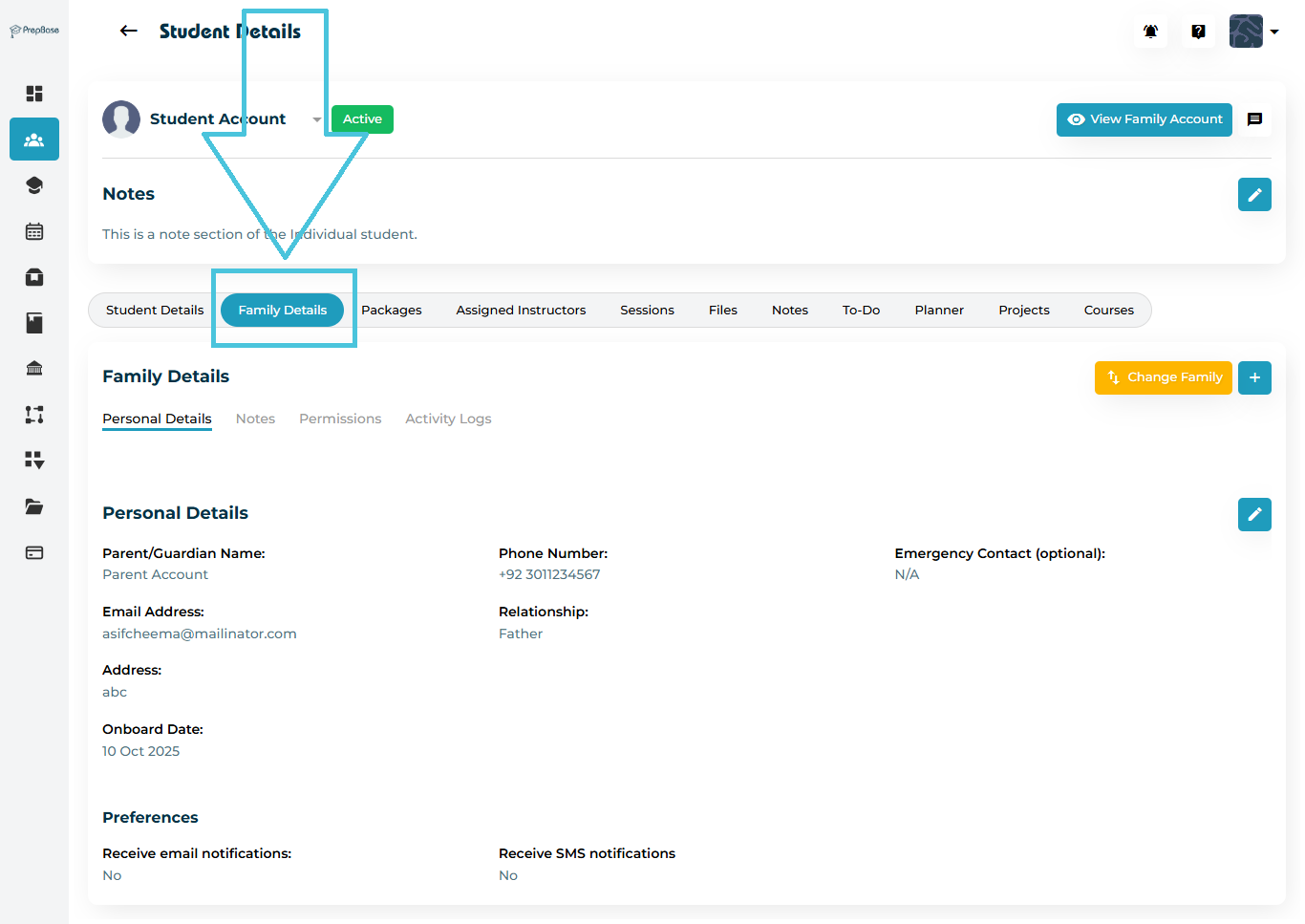
Select the Family Details tab from the top navigation.
Within the Family Details view, you’ll find four key sub-sections:
-
Personal Details
-
Notes
-
Permissions
-
Activity Logs
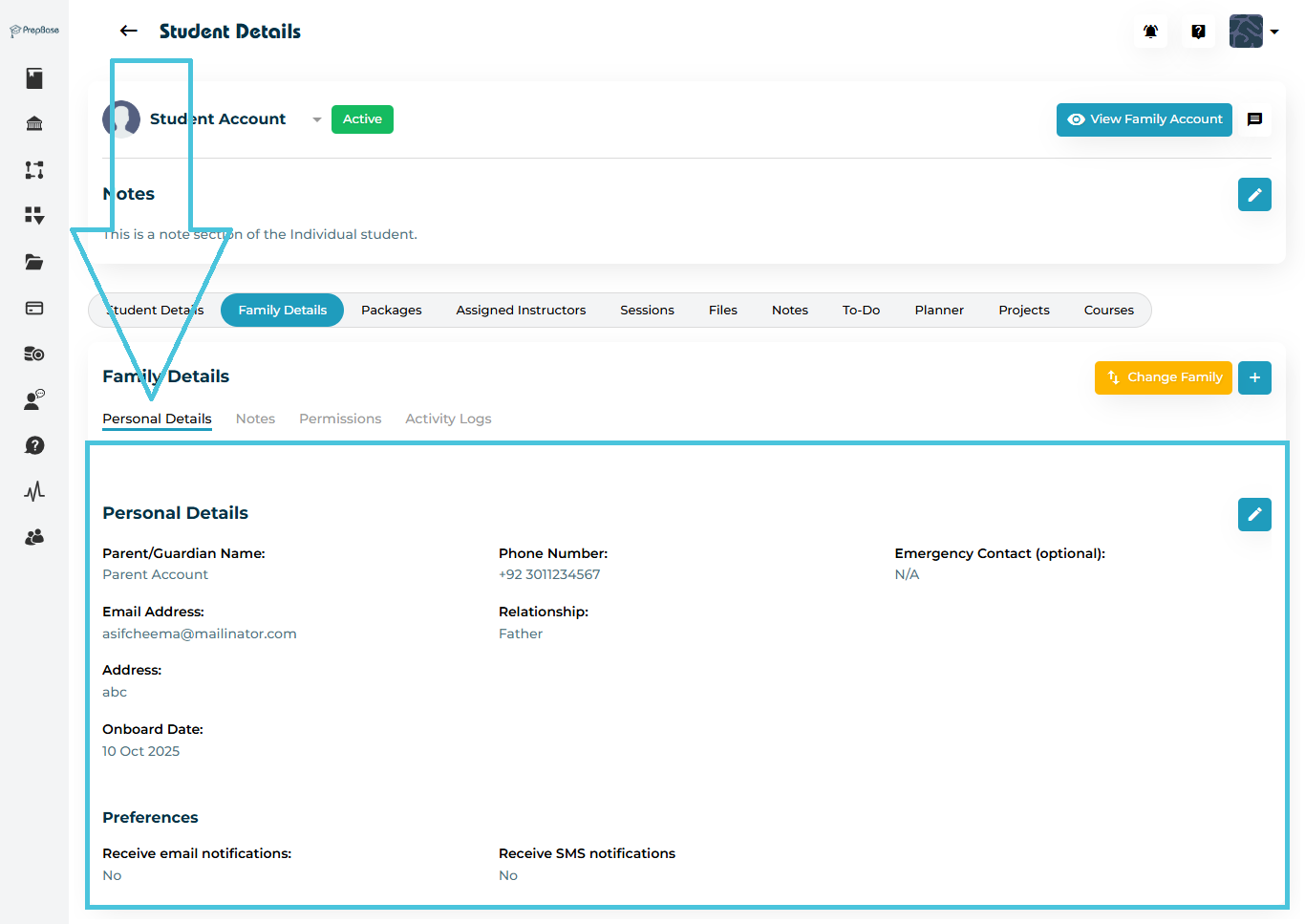
The Personal Details sub-tab displays the parent or guardian’s contact information linked to the student.
Displayed Information
-
Parent/Guardian Name
-
Phone Number
-
Email Address
-
Emergency Contact (optional)
-
Relationship (e.g., Father, Mother, Guardian)
-
Address
-
Onboard Date
-
Notification Preferences (Email or SMS)
If no parent is currently linked, you can use the Add (+) or Change Family button to associate the student with a new or existing family account.
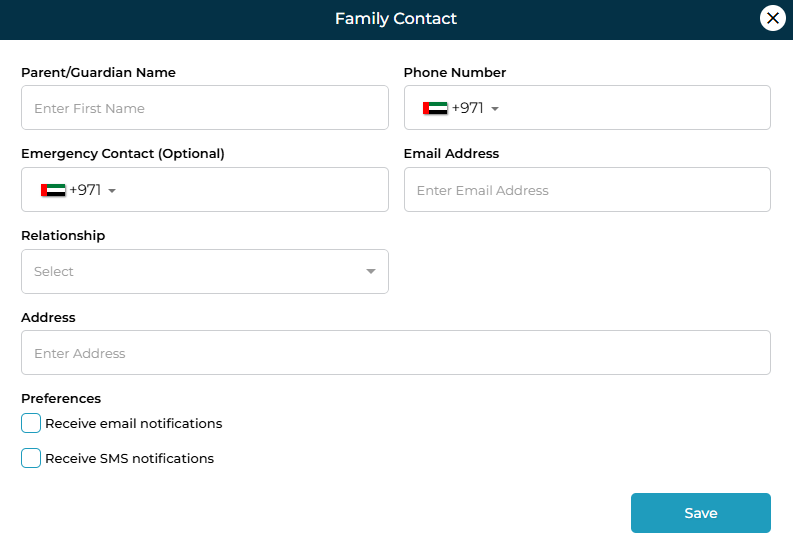
Click the ➕ Add button in the top-right corner of the Family Details tab.
A Family Contact form will appear.
Fill out the form with the parent or guardian’s information:
| Field | Description | Required |
|---|---|---|
| Parent/Guardian Name | Full name of the parent or guardian | ✅ |
| Phone Number | Contact number with country code | ✅ |
| Emergency Contact | Alternate contact number (optional) | ❌ |
| Email Address | Parent’s or guardian’s email address | ✅ |
| Relationship | Define the relationship to the student (Father, Mother, Guardian, etc.) | ✅ |
| Address | Residential address | ❌ |
| Preferences | Choose whether the parent receives Email and/or SMS notifications | ❌ |
4. Click Save to create the connection.
Once saved, the family contact appears under Personal Details.
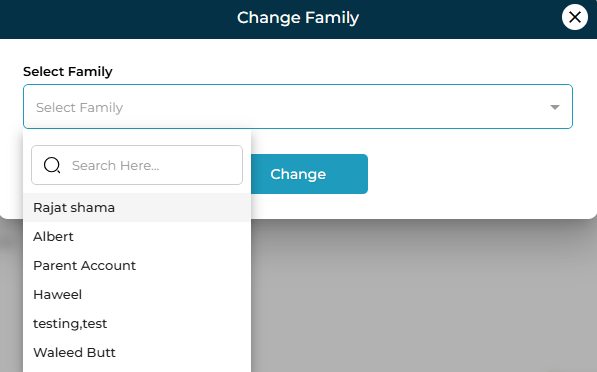
If the student already has a parent account created in the system, you can quickly link it using the Change Family button.
Click Change Family.
In the dropdown, search or select an existing family record.
Click Change to finalize the link.
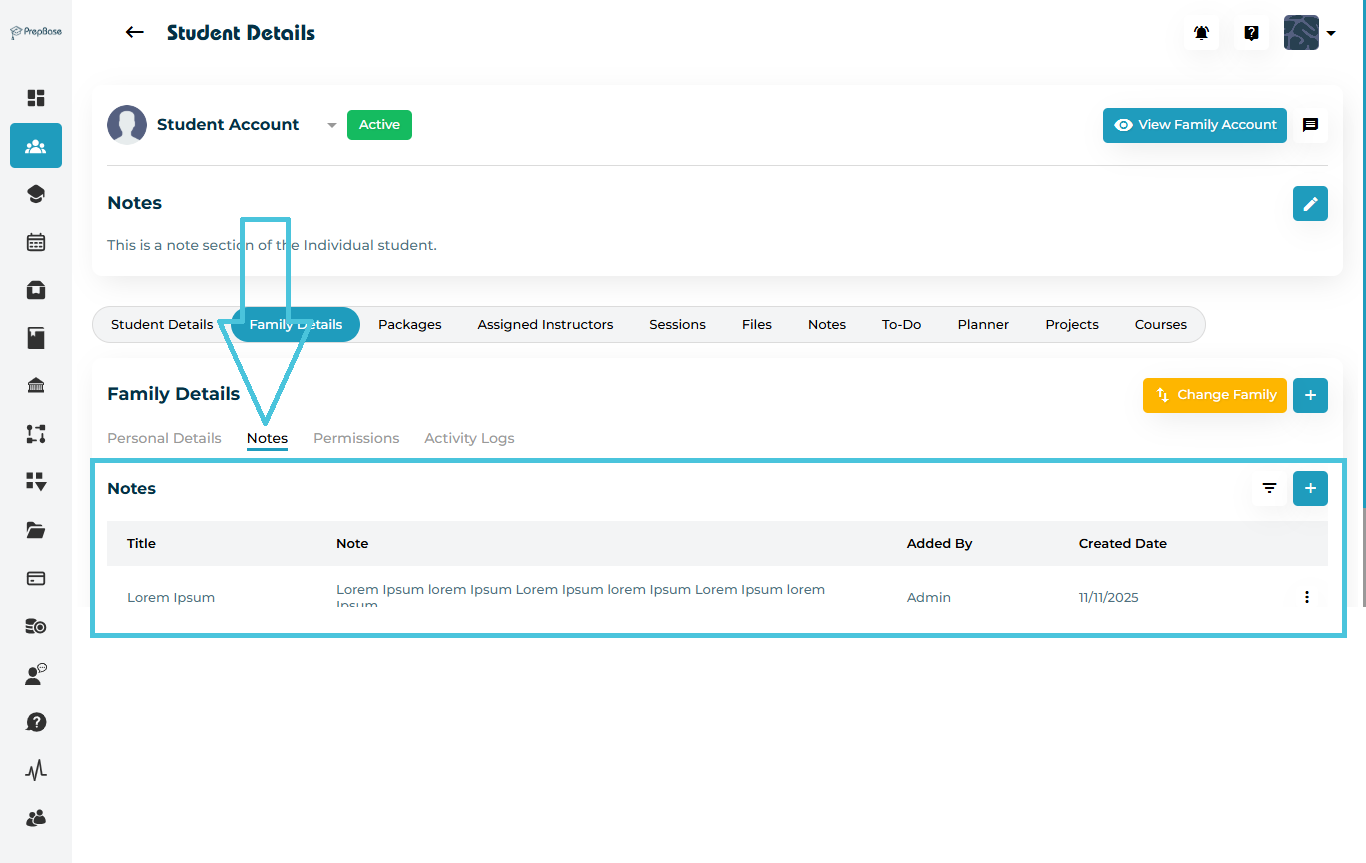
The Notes sub-tab allows Admins to record important comments related to the parent or guardian — for example, communication preferences, feedback, or meeting records. These notes are only visibile to Admis.
Each note displays:
Title & Description
Created By (User)
Created Date
Click the ➕ Add button to create a new note and record updates securely.
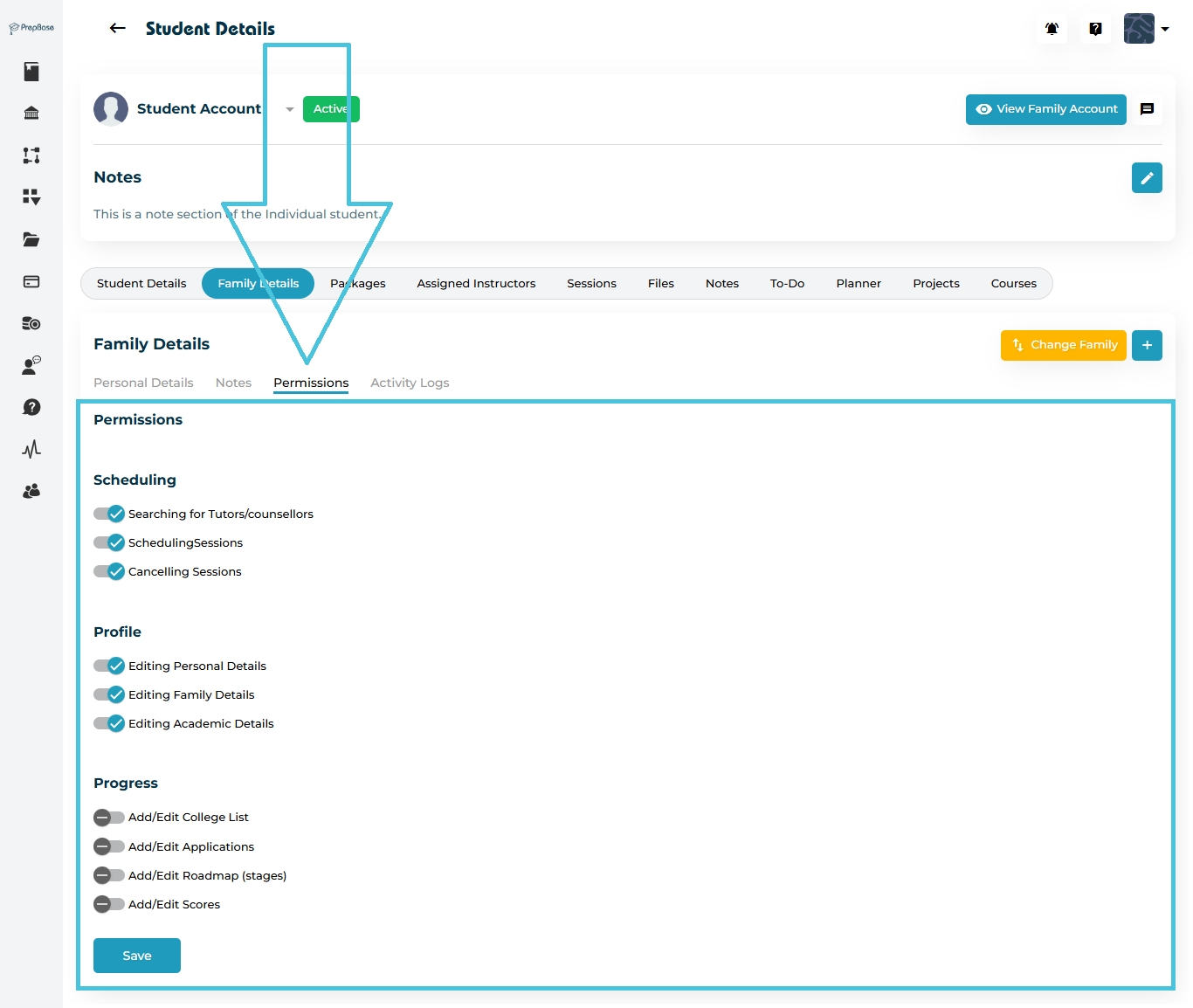
Similar to student permissions, Admins can manage what family members can access or modify within their linked accounts.
| Permission Group | Description |
|---|---|
| Scheduling | Enable or restrict parents from viewing tutors and counselors, scheduling or canceling sessions. |
| Profile | Control whether parents can edit their personal or family details. |
| Progress | Allow parents to update specific progress data like applications or scores. |
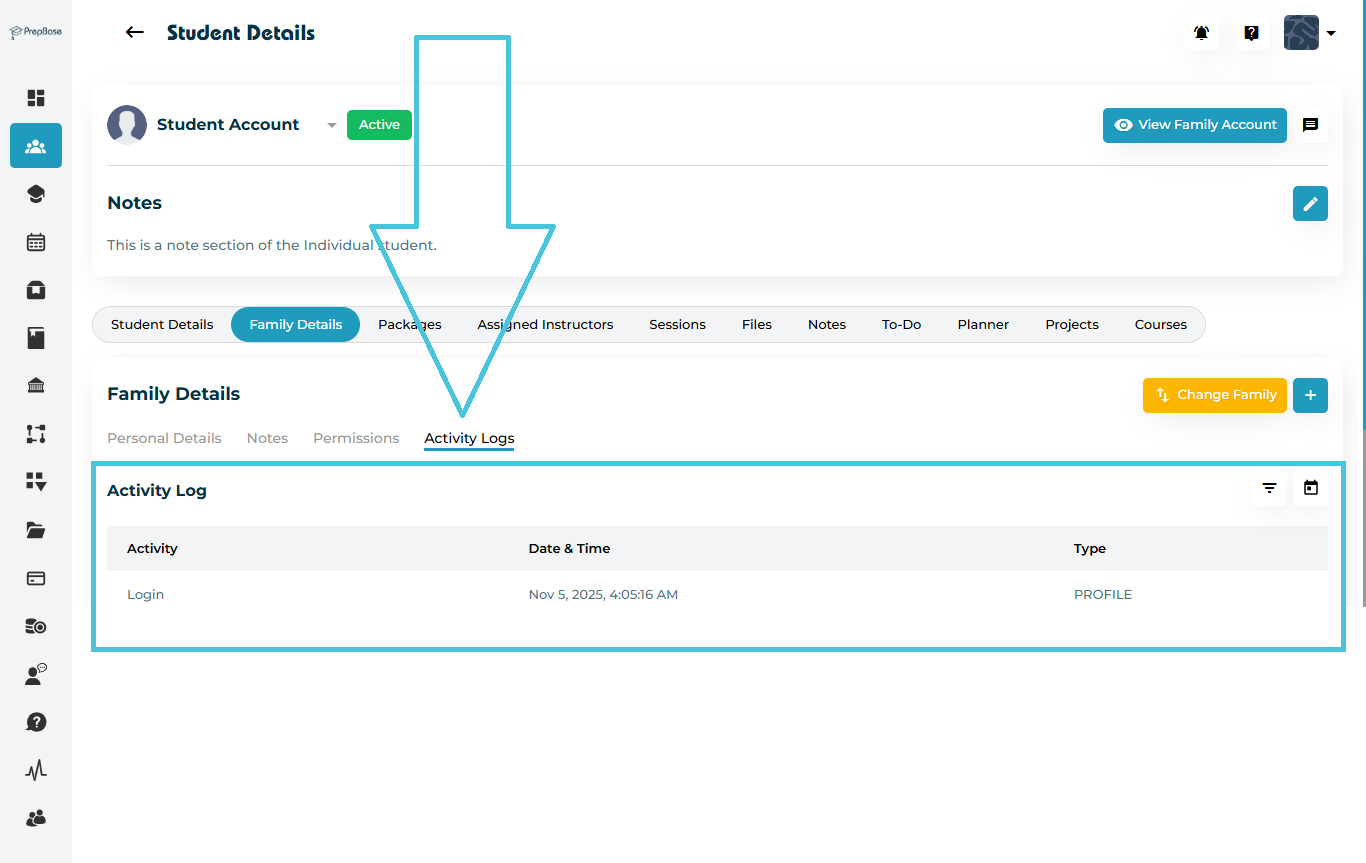
The Activity Logs sub-tab tracks every action taken by the parent or guardian, such as portal logins or updates to student information.
Each entry includes:
-
Activity Type (e.g., Login, Update)
-
Date & Time of the event
-
Activity Category (e.g., Profile, Portal)