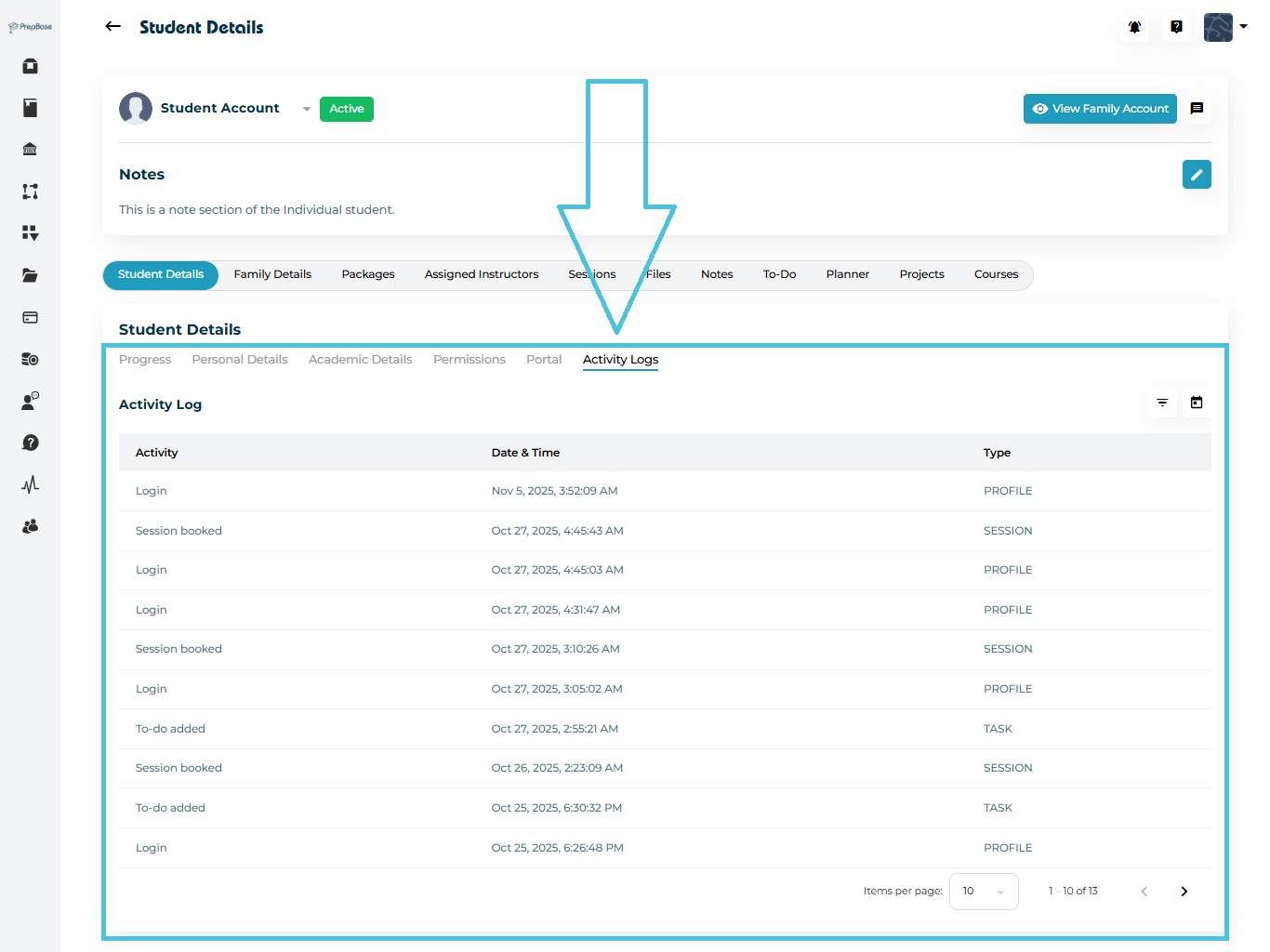
Checking student activity logs

Checking Student Activity Logs

Monitoring a student’s activity history helps you stay informed about everything happening in their account — from booked sessions to progress updates.
The Activity Logs tab in PrepBase gives a transparent record of each student’s interactions within the platform.

1. Accessing Activity Logs

To view the full history of a student’s actions:

  1. Navigate to Students Accounts → Student Profiles.

  2. Select the desired student from the list.

  3. Open the Student Details page.

  4. Click the Activity Logs tab at the top of the profile.

You’ll now see a detailed list of every action associated with that student — such as booked sessions, completed activities, and changes made to their profile.

2. Understanding the Activity Log Table

The Activity Log is organized into three main columns for easy tracking:

ColumnDescription
ActivityDescribes the action taken (e.g., Session booked, Profile updated).
Date & TimeShows when the action occurred, including timestamp.
TypeSpecifies the category of activity (e.g., Session, Profile, Note).

3. Using Filters and Date Range

PrepBase makes it easy to filter logs and focus on what matters most:
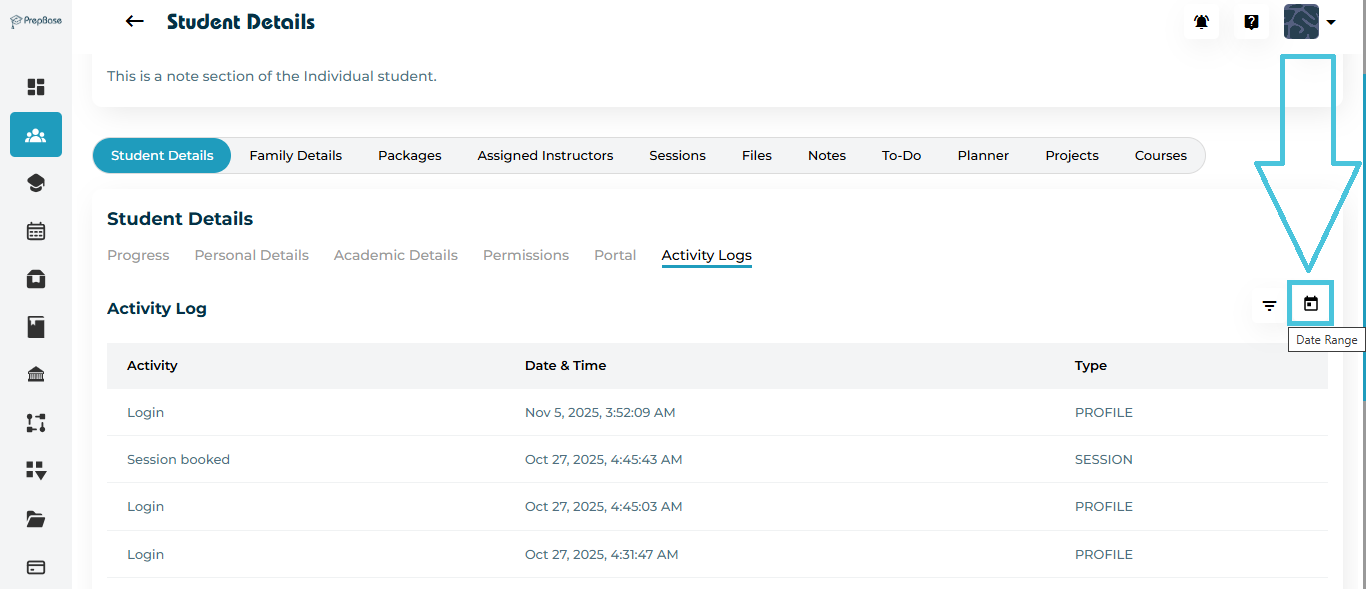
By Date Range

  • Click the calendar icon in the top right corner of the Activity Logs table.

  • Select a specific start and end date to view logs for that time period.
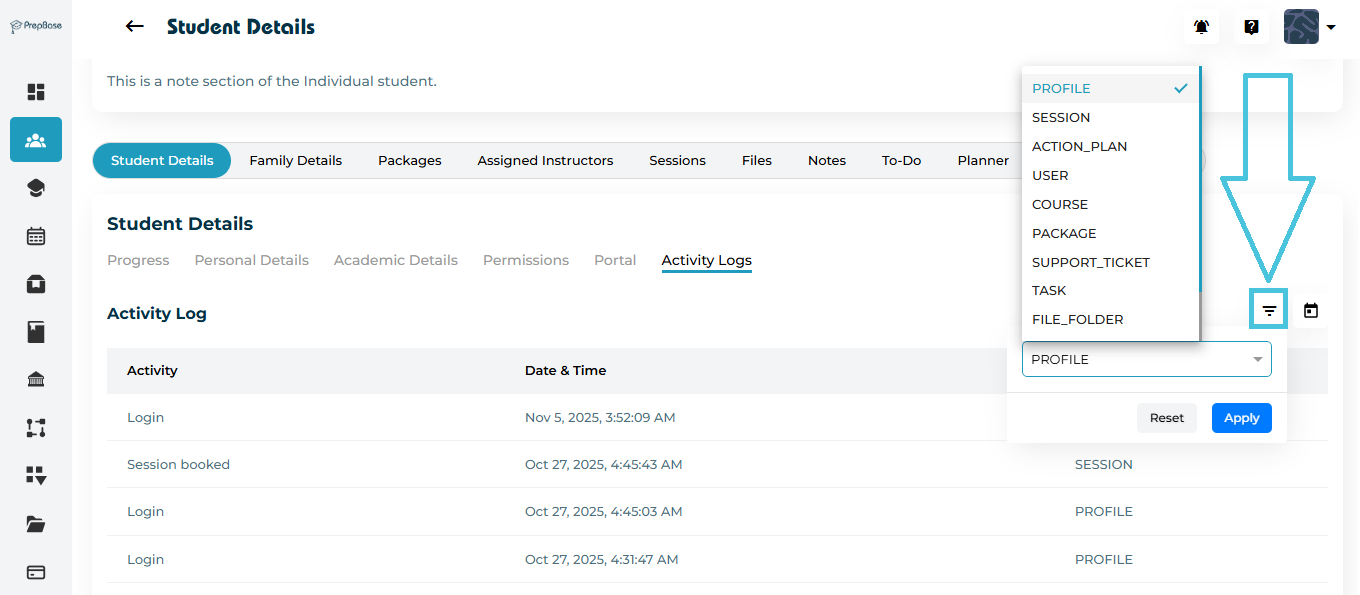
By Activity Type

  • Use the filter icon next to the date selector.

  • Filter results by Profile, Session, Action_Plan, User, Course, Package, Support ticket, task and File_Folder.

Note: Filters are especially useful when tracking large datasets for active students.

4. Interpreting Log Entries

Each log entry provides valuable insight into student actions:

Common Activity Types Include:

  • Session Booked: The student (or instructor) scheduled a new session.

  • Session Completed: The student attended and completed a session.

  • Profile Updated: Personal or academic details were modified.

  • File Uploaded: A new document or assignment was added.

  • Project Submission: The student submitted a project milestone.

Reviewing these logs helps tutors and counselors identify recent interactions and ensure accountability across the platform.

IN THIS ARTICLE